Image Map
Showing posts with label ActivInspire. Show all posts

Monday, November 9, 2015

How to Lock an Object in Place on an ActivInspire Flipchart

Interactive flipcharts are a fun way for students to stay engaged during a whole-group lesson. But sometimes you want certain parts of your flipchart to stay locked in place so students don't waste time trying to move them. 

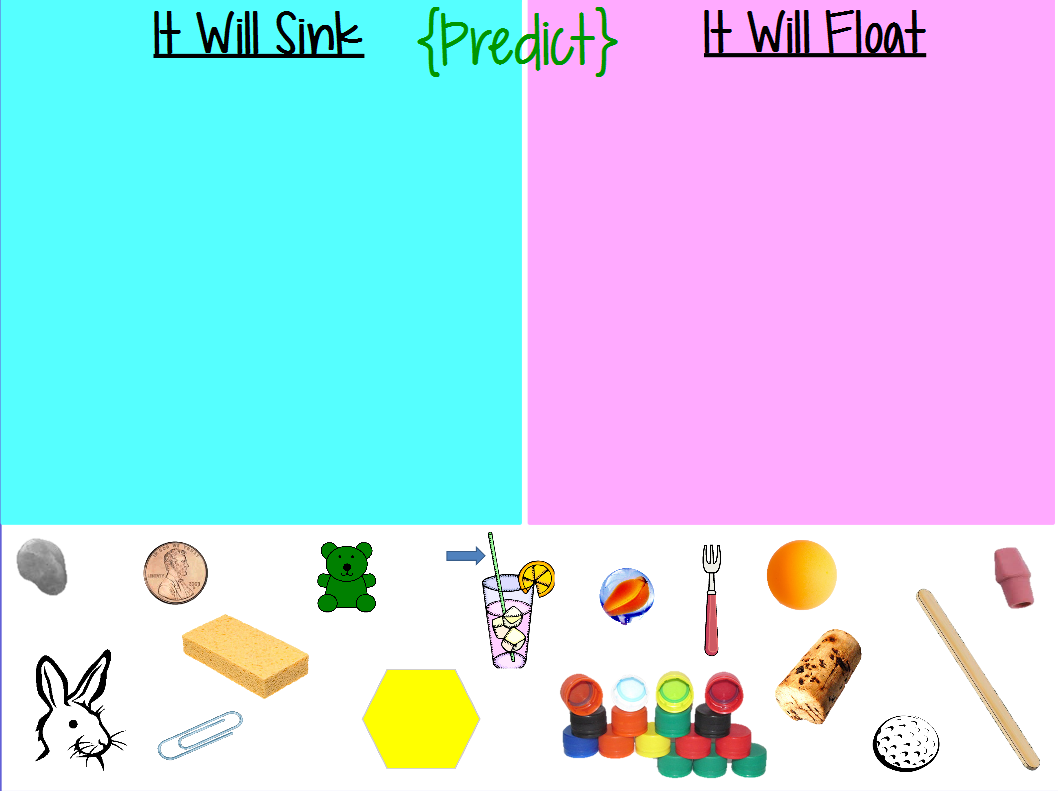
For instance, in the flipchart page below, I wanted kindergartners to drag items from the bottom into a box at the top to make a sink or float prediction. However, I didn't want students to be able to move the blue or pink boxes, so I locked them in place.


To lock something in place, right click on the object, and then click "locked," as shown below:

You can also use this keyboard shortcut: Control + Shift + L
As long as you are in presentation mode {the blue box in the top, right corner of your screen, as shown below}, the object will not move.


When you are ready to re-design your flipchart and need to move that object, just click the blue square in the top corner and change it to design mode {red}, as shown below:


Thursday, May 28, 2015

How to Disable the Re-sizing Feature in ActivInspire

It's such a small thing, but being able to disable the re-sizing feature on objects in my ActivInspire flipcharts has been really helpful for several of my lessons. Special thanks to Clair for showing me this trick!

There are a handful of flipcharts I have for my younger students where I ask them to sort objects on the screen or make predictions with pictures. A good example is in my first grade sink and float lesson:

No need to worry -- we aren't dunking live animals in water to test if they sink or float! The rabbit clipart is the best representation I could find of a small rubber rabbit toy we test. :)

In the example above, every student moves an object or two into the spot that best represents their sink/float prediction. But because there are so many objects in such a small amount of space, it is inevitable that a handful of students will actually re-size the pictures instead of moving them. It's a minor annoyance with an easy fix. 

1. Select an image in your flipchart. 

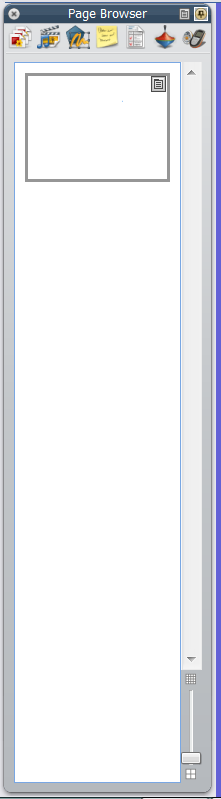
2. Find the browser section that looks like this:


If you can't find this section (it's usually on the left side of the flipchart page), press control + b to make it visible. 

3. Go into the property browser ActivInspire. The property browser's icon is shown between the arrows below.

4. Find the section that says "restrictors." Press the plus sign if the section isn't extended all the way. 


5. Find the "can size" drop-down menu and select "no."


Now students can freely click on objects in your flipchart to move/sort them without the risk of re-sizing the image. Less disruptions = more learning time. :)