It's scary to even consider asking a child to conduct a normal Google search because you never know what will pop up! And although it's important to teach students how to use the library's search engines, sometimes those databases don't have everything your students need. So what's a teacher to do?
Answer: create a Google Custom Search.

What Is a Google Custom Search?

What Is a Google Custom Search?
Users who are logged in to their Google account can go to this webpage and create a search engine that looks like a regular Google search, but it really only allows visitors to search websites of your choice.
So, for instance, you could set up a Custom Search that allows students to only access kid-friendly websites. Once you give them that search link, you can rest assured that only appropriate content will appear.
How to Create a Custom Google Search:
1. Log in to your Google account. {If you don't already have a Google account, go to this webpage and create one. You don't even have to use a Gmail address -- you could use an e-mail that you already have and link that to your new Google account, if you want!}
3. Click "Add" on the top, left of the page (under "Edit search engines").

4. The only portion you really have to fill out is the "sites to search" box. As you click in the blank box under "sites to search," a new text box will automatically appear underneath the first one, which allows you to add as many kid-friendly sites as you want to this Custom Search. The name of your search engine is automatically populated, but you can change it if you want. Add advanced options if you wish, although it's not necessary. When finished, click the blue "create" button at the bottom of the page.
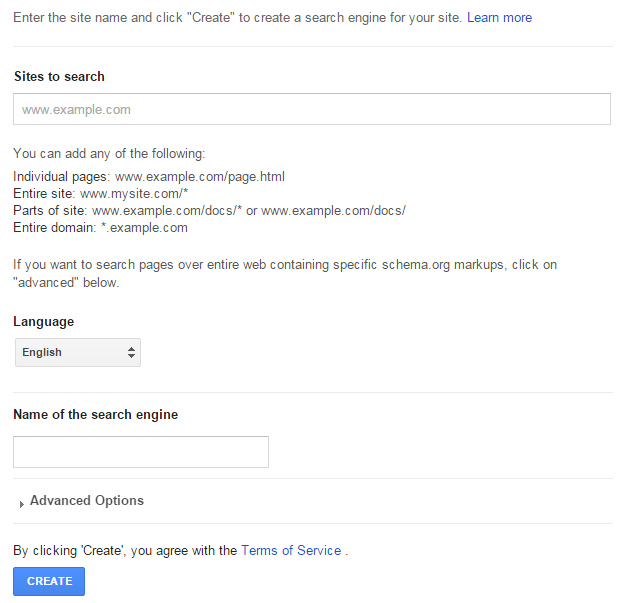
5. After you click "create," you'll see a page that looks like this:
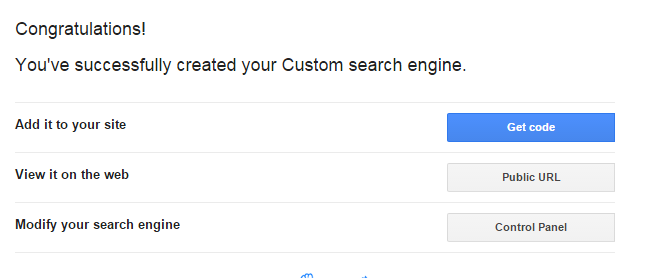
Click "Public URL." A new window will open on your browser, and it should have the name of your Custom Search at the top. Keep in mind that although it looks like a regular Google search, it's the custom one you just created. :) Mine looks like this {click the picture to view the page in your browser...or click here}:

When students search, they should type their words into the text box underneath the title {notice how it says "Google Custom Search" in that box}.
The search results will only come from the website(s) you specified when you created the Custom Search. So, for instance, if you conduct a search in my Kid-Friendly Custom Google Web Search, you'll only get results from these websites:

As the creator, I can edit or delete this Custom Search at any time.
Teachers can AirDrop this to newer student iPads and have students save the website to the home screen for quick access all year long. {Read about 8 ways to quickly share links with students if you have older iPads without AirDrop or teach in a BYOD class.}


 . As I'm sure
you know, Amazon has a variety of school supplies, games, and books that
can be useful in the classroom.

 or
 -- why not give away a gift card as a classroom prize and let the student order a new book?