Image Map

Saturday, May 2, 2015

Message Students & Parents Without Revealing Personal Information

I wrote about this service back in 2013, but they've debuted some new features since then, so I thought I'd update. :)

The service makes it super-easy to get the word out to your classes in that it:
  • provides a PDF with step-by-step directions that you can print or post on your class website
  • allows your classes to sign up to receive updates either by text message OR by e-mail 
  • provides a widget code for you to cut-and-paste into your website so that everyone can see updates {regardless of if they've signed up to receive the updates on their personal device or not}

Other key features about Remind:
  • free
  • download the app for on-the-go updates
  • pre-schedule messages or send them in real time
  • ability to attach files to messages
  • set up as many different sections or groups as you want {so you could have a section for your tutoring group, Spanish club, church's youth group, homeroom class, and daughter's basketball team if you want!}
  • view subscribers in each group and the date in which they joined
  • ability to make personal notes about each subscriber {I find this most helpful when I have parent subscribers because I can make a note of which child "belongs to" them!}
  • view all your past sent messages and choose to send them again or tweet the message
  • no deletion available {helps protect teachers and students!}
  • chat feature {more information below}
  • stamp feature {more information below}
-----

Chat feature: available starting in April 2015, but Remind is rolling it out a group at a time. For instance, app users on the wait list will receive it first, and then they'll roll it out to web users. Get your name on the wait list by logging in to the app and clicking on "chat." Learn more here.
  • Unless otherwise enabled, only the teacher can initiate chats
  • Can set "office hours" so you're only contacted during times of your choosing
  • Transcript of all chat history is available
  • Allows you to chat one-on-one with anyone in your group instead of sending a mass message
-----

Stamp feature: available on April 20, 2015:
  • allows recipients of your message to provide instant feedback without the sender getting a barrage of messages
  • Stamp options include these symbols: ★ ✓ ✘ ?
  •  = I like it, I appreciate this, and/or this message is a favorite of mine
  • ✓ = yes
  • ✘ = no
  • = I don't understand, I have a question, and/or I need more information
  • Subscribers see an overall count of the results, while the sender sees how each subscriber answered
  • Great way to check for understanding in class! 
  • Remind's list of 10 suggestions for using stamps {some include using it as a quiz or polling option -- great idea!}

Have you ever used Remind? If so, have you used or will you use the chat and stamp features? If you haven't used Remind, would you consider it? Why/why not?

Sunday, February 15, 2015

Seesaw: An ePortfolio and Paperless Class Option

Seesaw, who advertises themselves as "the learning journal," is my newest favorite tech tool. It's available both on a browser and on iOS-compatible devices {download the app for free here} or on Android devices. In a nutshell, it's an easy way for students without e-mail addresses to turn in work to you and/or create an ePortfolio. 
More Information
You, the teacher, must create an account on the Seesaw app. Afterwards, add a journal for each student -- it's very quick! Seesaw generates a QR code that students scan in order to join your class. From there, students can upload or take a photo from within the app, annotate over the top of it, and record his/her actions and voice. In that respect it's a lot like Educreations, but Seesaw allows each kid to have his/her own special journal. 
Pros:
  • Totally free.
  • Compatible with iOS and Android. Both apps are free, of course.
  • Free web access.
  • Multiple sign-in options. Kids can sign in with a (Seesaw-generated) QR code or an e-mail address -- choose what works best for your students.
  • Unlimited space. Teachers can create an unlimited number of spaces, have an unlimited number of students, and students get unlimited amount of space for work uploads.
  • No e-mail address, username, or password required. Each class has a QR code that students simply have to scan in order to access the class. This eliminates the need for logging out and back in before every assignment, which can eat up a lot of time!
  • Plays well with others. Seesaw is compatible with lots of commonly-used creation apps so that you can import work from there into the Seesaw journal. It can also help you bypass the need for an account in those other apps. For instance, users typically need an account in order to export work from Shadow Puppet Edu. However, if they export to Seesaw, no account is needed!
  • Co-teaching? No problem. Add a co-teacher to your account by simply e-mailing the Seesaw team. 
  • Moderate as needed. Ability for the teacher to approve/deny each journal entry, along with reassigning work to students if they accidentally upload to the wrong journal.
  • School-wide account option. E-mail the Seesaw team to activate this option. Once done, you can upload student accounts in bulk, and a student's work can go with them from year to year.
  • Activate alerts. Get notified via e-mail and/or on your device each time a student uploads work, if you want. {Parents also have this capability with their own child's work.}
  • Easy parent communication. Teachers have the option to invite parents to view their child's work {parents only see their child's work}. Parents can view everything that is uploaded to their child's account and comment on individual assignments {if you activate that feature}. If their child is enrolled in more than one class that uses Seesaw, the parent should see all work merged into one stream.
  • Optional upgrade for parents. A basic parent account is free, but they can upgrade for $10/year to access additional features. 
  • Quickly find student work. The teacher can access a calendar view; click on a day to access all work added to the journal that day. The teacher can also click on a specific student's journal in order to see work only he or she completed. Finally, the teacher can flag work for follow-up, and then later choose to view only the flagged items.

Cons:
  • No way to push information to students. I spoke with the support team, and they said they've heard this from a few teachers and might be adding this feature in the future. But for now, you cannot upload anything to a class journal for students to grab and work on, for instance. If your iPads have AirDrop, though, there's an easy work-around. 
  • No way to edit. This is a feature the team is supposedly working on, but for now, once something is uploaded, the teacher has to delete it -- as students cannot delete -- and the student will have to edit and re-upload, as there are no "do-overs." 
  • School accounts seem needed. Journals do not carry over from year to year unless you have a school account. I'm not sure what happens to the student's work after the school year is over, but it's something to look into. 
  • No way to grade. It would be super if this app gave you the ability to grade things or annotate on work, but right now, it's just a storage hub for student work.
  • No PDF support. But you can take photos/screenshots of PDFs, so this is only a minor annoyance.
Personally, I think this would be awesome to take into parent conferences. If the parent already has an account, there are no surprises! But if not, all of the student's work is on your iPad, so you can just let his/her work samples do the talking. 
You can use Seesaw even if you only have 1 iPad in your class. Just have students take a picture of their paper work and upload it to their own account instead of turning in the paper version. And because Seesaw is compatible with so many other commonly-used creation apps, you aren't limited to just annotation and videos for student uploads. Here's a list of apps with which Seesaw plays well. Plus, the Seesaw website even has lots of activity ideas already posted for each subject area so you can dive in ASAP.

Sunday, February 8, 2015

Schedule Meetings Easily with Doodle

Doodle is a tool meant to help ease the pain of scheduling a meeting or other event with multiple people. So if you're like me and struggle to find a common time for your team to meet and plan, Doodle is going to come in handy for you!

A basic account at Doodle is free, although there are upgrade options.


How It Works:

1. Create a free account. 

2. After logging in, click "schedule an event" at the top of the page. 


3. The only information that is absolutely necessary to provide is the title of the event + your name and e-mail address -- and the latter two fields are pre-populated for you based on your login information. You are encouraged to type a location and brief description, though, so that your attendees are less likely to be confused. 

4. Click "next" at the bottom of the page to go to the scheduling section. Click the calendar to highlight the potential meeting times:


5. Add in potential meeting times to each date selected:


6. From there, either choose a basic poll to complete the set-up, OR toggle the settings options. 


Here are the settings options:


If you pay for the premium Doodle service, you could also choose from any of these 3 additional options:


7. Once the set-up of your event is completed, it's time to invite participants! You can connect to Google or your iCloud for easy retrieval of the e-mail addresses, and you can invite up to 250 people to one event. Choose to add a personal message that will appear in the e-mail, if you want. For instance, the very first time I sent a Doodle link, I included a message about what Doodle is and how it might work for our team. 


8. Toggle the share settings:


You can decide if you want to limit your event RSVPs to only those that you send the e-mail invitation to, or if you're okay with RSVPs from anyone who has the link {so your original recipients can forward your invitation}. 


A link to your event is then sent to each recipients' e-mail inbox. You can access your open events {polls} by clicking "my polls" at the top of your account page or by finding the "my polls" section on your dashboard.


After you send the invitation, you'll get two e-mails from Doodle: one with the participation link and the another with the administration link. The administration link allows you to go directly to your event page to edit it, but you can also just log in to your Doodle account to edit your polls. Click the "participation link" to check off the times that you are available and give all participants an example. 

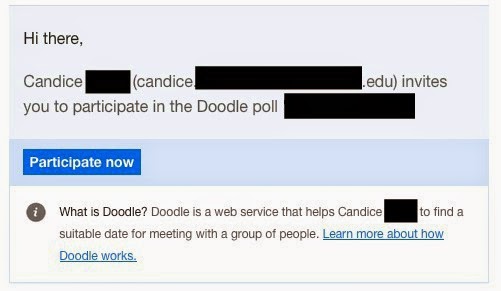
Your invitees, on the other hand, will receive an e-mail similar to this:

This is the e-mail my team received when we were trying to meet for our annual December meeting/Christmas celebration.

Here's a test poll I created for this post so you can see what invitees see when they go to the poll page:


Invitees can see when the poll was created, who created it, who was invited, other invitees' schedule votes, and any comments left on the poll. They can also print the invitation if they want {or you can print it and put it in the mailbox of a colleague who maybe isn't as comfortable answering online}. 

Recipients only have to enter their name, check the box(es) under the dates/times that work for them and click "save." 

As guests participate in the poll, the administrator receives e-mail updates about their votes and any comments that are made. I'm not sure how long a poll stays open; I only know the one I created around the second week of December is no longer in my account. It could expire after a certain amount of time, or it could expire after the date of the event! 

If you need to edit your poll at any time, you can do so by visiting the administration link sent to your e-mail, or by going to your participation link and clicking the "administration" tab at the top. 


See below to view your administration options for each open poll:


I've only used Doodle a couple of times, but my experience with it has been nothing but great. It's a neat tool to help large groups of people with busy schedules find a common meeting time! 

post signature