Image Map

Monday, October 12, 2015

Seesaw: Student Navigation

I used Seesaw {the free ePortfolio tool} with my K-4 students last year, and it helped us make the Science Lab almost completely paperless, so it's no wonder I continue to rave about this tool! As a Seesaw Ambassador {look for me in the southwest section!}, I get constant updates about what the team is doing to improve their {already awesome} tool, so I was inspired to write a series of blog posts on Seesaw. Check back frequently over the new couple of weeks or follow me on Twitter to make sure you don't miss any of this series! 

This post is all about helping students navigate Seesaw and submit work to their journal.

I made a ThingLink with Seesaw vocabulary; it might be fun to show it in class to your students when you introduce Seesaw!


In the ThingLink above, the icons on the left {there are 7} are all ones you and your students will find on the dashboard. The 3 icons on the right are ones your students will find after they upload an image or draw an image on the included whiteboard. Hover over the picture, and little circles will appear on every icon. Hover over a circle, and text will appear that will explain more about what that icon does. 

While students are able to log in to their account via a computer or Chromebook, screenshots and directions in this post will focus on iOS devices, as that is what my district uses. 

When students first log on to the app, they should see the dashboard, which gives them 6 options:

You can find more information about what each of these options does by viewing this ThingLink

Submitting Work
If the student chooses to type a note, he will see a screen that looks like lined notebook paper. After typing, click the green check mark in the top, right corner. Then he will see a screen that looks like this:


Click the microphone to record voice notes, and click the notebook icon to go back to the typing screen to edit the typed work. Click the green check mark in the top, right corner to continue. 

If this class is set to "classroom sign in mode" {discussed in this blog post}, students will need to choose their name from the roster:

Notice the circles on the left next to student names -- this means the work can be submitted to multiple journals at a time, if you want
Selecting their name puts a green check mark next to it, so you can easily see which journal(s) are selected before moving on. You can submit work to as many student journals at a time as you want. {My class had 12 iPads, so students primarily worked with a partner and then submitted the work to both their journals when they were finished.}

This works basically the same way for all other features, but let's look at one more example: drawing. When a student chooses to draw, he sees a whiteboard and an array of colors, like this:

The eraser and marker size tool are both new features this year -- yay!
The student can draw with his finger or a stylus, choosing colors as he sees fit. To increase or decrease the width of the drawing pen, click the the button with 3 lines {next to the check mark}. When finished, click the green check mark to see a screen like this:


Click the microphone to add a voice recording, the pencil to go back and edit the drawing, and the "T" to add a caption in the bottom, left corner. There is talk about two new upcoming features, but I'm not sure when/if they will be released... One is the ability to record as you're drawing, so both the drawing and the voice are recorded at the same time -- much like Educreations or Explain Everything. The other feature is the ability to move the caption wherever you'd like on the screen so it can work as a label for diagrams and such. 

When finished, click the green check mark, select the student name from the list, and click the green check mark again. It's SO easy! My kindergartners were doing this with ease after they tested it just once! 


Viewing Work
As discussed in this blog post, students who sign in with a QR code in classroom sign in mode will see every other students' work in their newsfeed. Remember that you can change this by switching to individual student sign in; in this mode, students will only be able to see their work in Seesaw and will need to log out of their account each and every time they stop using the iPad. 


Copying and Editing
If students are in classroom sign in mode, they can view each others' work if you, the teacher, enabled access {find it by going into "manage class," looking under "students," and clicking to enable item editing}. When viewing others' work, students have the option to copy and edit something to add into their journal. They can copy and edit by clicking on the "..." next to someone else's work:
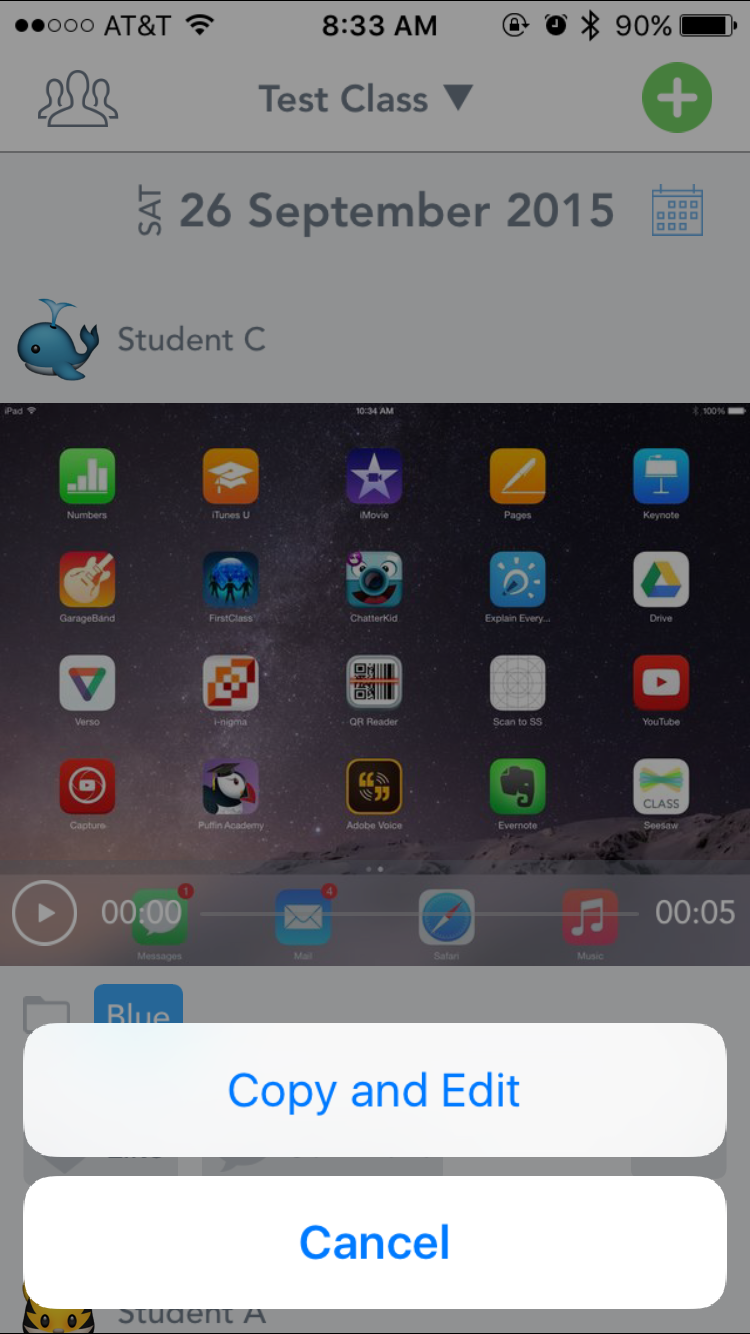

After pressing the "copy and edit" button, they'll see something like this:


This option was not available when my kids used it last year, so I haven't seen it in action with students yet! For this blog post, I copied and edited work with a voice recording attached to it. It appears that that voice recording stays attached to it, and that the new student can rotate the picture, record more voiceover, annotate over the picture, and add a text caption. When copying and editing, students can only submit to one journal at a time.

Notice the lack of circles on the left side next to the student names -- this means students can only submit to one journal at a time
If students press "link" within the app, they may see this pop-up:


Please note that you can only submit a link within the app if the link is copied to your clipboard. If you get this notice, you can click the home button of the iOS device, go into Safari, find the website you want, long-press in the URL bar, select "copy," and then double-click the home button of the iOS device to go back into Seesaw and enter the link. 


Feed View & Calendar View
More details about feed and calendar view will be discussed in the next blog post about teacher navigation, but for now, just know that students can access both of these options by clicking on the silhouette of the group of people in the top, left corner of their screen and viewing the slide-out menu that looks like this:

Students can always check the name of their teacher in this view and the name of the class they're logged into by going to their dashboard


Liking and Commenting
Students in classroom sign-in mode can see each others' work, and they are able to "like" or comment on classmates' work if you enable the feature. To enable it, go into "manage class" settings, find the "student likes and comments" section, and enable what you wish. You can enable just likes, just comments, or both, and you can require teacher approval before comments are published {which means you'll get a notification about each and every student comment}. 


Tweetable


Other post in this series:
  • Features: available 10.10.15 {what students can do, what parents can do, and what teachers can do}
  • Getting Started: available 10.11.15 {signing up, creating a class, classroom sign in vs. individual sign in, creating folders, helping students sign in}
  • Student Navigation: available 10.12.15 {icon glossary, submitting work, viewing work, copying and editing, feed and calendar view, liking and commenting}
  • Teacher Navigation: available 10.13.15{finding student work in the feed, individual student journal, calendar, folders, flagged work} 
  • Pushing Work to Students: available 10.14.15 {converting printed files to digital ones, sharing PDFs vs. image files, pushing work to everyone vs. pushing work to select students, AirDropping images}
  • Interacting with Student Work on Seesaw: available 10.15.15 {student work: dissected, editing people and folders, downloading and sharing items}
  • More Options: available 10.16.15 {managing class, students, parents, folders, other, and administrative details; student avatars; premium version}

Sunday, October 11, 2015

Seesaw: Getting Started

I used Seesaw {the free ePortfolio tool} with my K-4 students last year, and it helped us make the Science Lab almost completely paperless, so it's no wonder I continue to rave about this tool! As a Seesaw Ambassador {look for me in the southwest section!}, I get constant updates about what the team is doing to improve their {already awesome} tool, so I was inspired to write a series of blog posts on Seesaw. Check back frequently over the new couple of weeks or follow me on Twitter to make sure you don't miss any of this series! 

This post is all about signing up, creating classes, organizing work in folders, and getting students logged on to Seesaw.

While it is possible to sign up through the app, signing up through the website is probably the easiest of the two; therefore, this tutorial will feature screenshots from the website.

Sign up for Seesaw
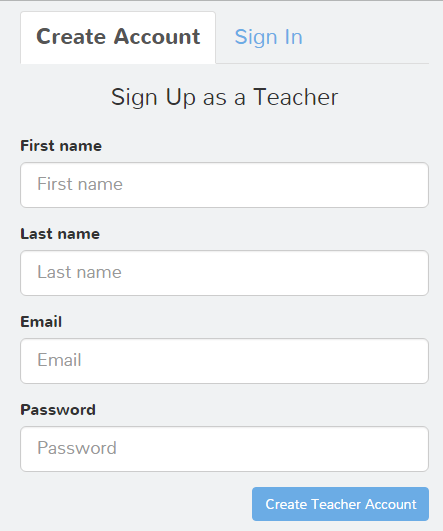
1. Click here to sign up for a Seesaw account. 


2. Click "I'm a teacher."


3. Fill in the appropriate fields {or scroll down and click "teacher sign in with Google" to connect your Google and Seesaw accounts}. 


Create a class in Seesaw
I believe users start out with 10 classes. If you need more, you can e-mail the Seesaw team and explain your situation; they are amazingly accommodating and will probably grant you more classes! If all else fails, you can have more than one account and link yourself as a co-teacher so you only have to log in to one class. :) 

1. Once you're inside your Seesaw account, click your name and/or profile picture in the top, left corner. 


The screen will slide to the right and reveal a menu on the left. Scroll all the way to the bottom of the menu, and click "+ new class."

2. Unless your students have email addresses or Google accounts, click "Use a class code."


3. Fill in the appropriate information in the pop-up box. If you select an elementary grade, student avatars automatically appear as cartoon animals. If you select a secondary grade or "other," student avatars populate as their first and last initial. {You can change avatars later.} Keep in mind that students will see the class name when they first log in. It's especially important to use a good naming convention if other teachers in your building use Seesaw, too. 


If you have a class list already handy, click "paste list of student names." 


Add one student name per line {first name, last name format} and click the green check. I recommend adding yourself as a student -- I will talk more about that in a later post. 


Click the green check again to create your class. 

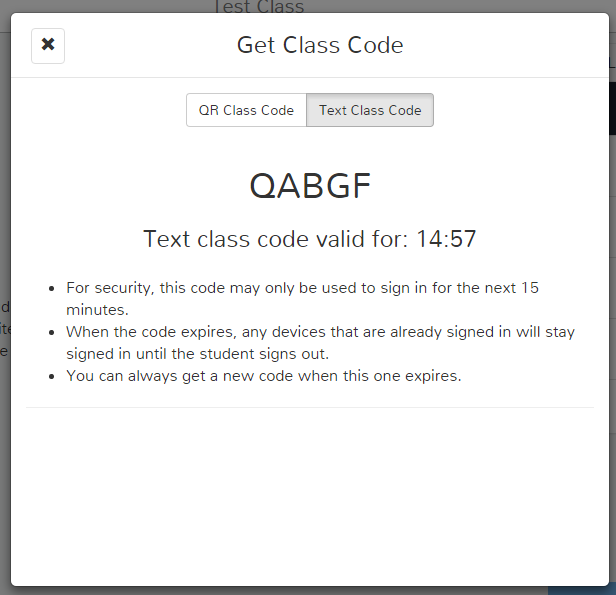
Seesaw will automatically e-mail you the QR code students use to sign in, but you can access it or the text code at any time by clicking "get class code" in the upper, right hand corner of your dashboard on the website.


The QR code is probably the quickest and easiest way for students to join your class from their device. Be aware that students will scan the QR code from inside the Seesaw app. The code will not work if students try to scan it from a QR code reading app {such as QRreader or Scan}. The text code is great if a student doesn't have a camera on his/her device, or if you need someone to join remotely. Seesaw generates a text code from your teacher dashboard online only, and the code expires in 15 minutes, as shown below:


A note about student accessibility:
When using the class code sign-in option, the default setting is one where students can view other students' work. Obviously, if you are giving any type of assessments through Seesaw, it would be best to turn this option off. To do that, sign in to your teacher account via the web, click your name in the left corner, click the class name, and choose "manage class." Under the "students" heading, you will see this:


Classroom sign in means that students can scan a QR code to log in to the class. That iPad remains logged in to that class until a student signs out. Students can see each others' journal work and comment/like each others' work if the teacher enables that option. 

If you click on "classroom sign in," you'll see another option: "individual student sign in." There's a big warning under this option that says it's for 1:1 classrooms only, which I think scares a lot of people off. In reality, you can use this sign in option even if you're not a 1:1 school. The "individual student sign in" option still lets students sign in with a QR code, but when they sign in, they're prompted to choose their name from the class list. Once they choose a name, they see that person's journal and only that person's journal. The device remains logged in to that student's journal until the student signs out. This sign in mode does not even give the option for the teacher to enable liking or commenting of other students' work, since students only have access to their individual journal. 

You can switch back and forth between sign in options, but students will be logged out of the app on all devices each time you switch the sign in mode. 

Create folders to organize work {optional}
You can create color-coded folders and give students the option to submit their work to folders to keep your Seesaw feed nice and organized. 

To create a folder, go to the web version and click your name in the top, left corner. Click your class's name and then "manage class." Scroll down until you see the section on folders:


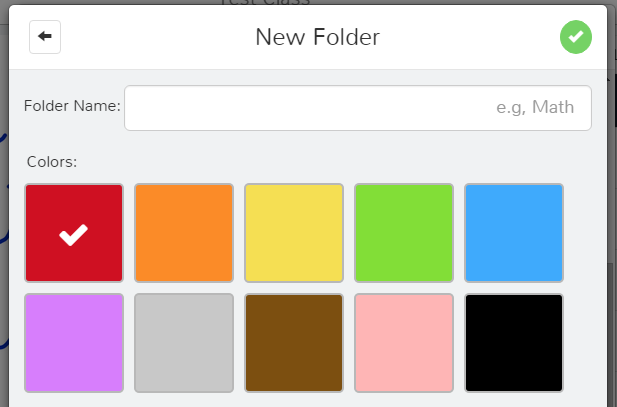
Click "manage folders." At the bottom of the pop-up box, click "+ New Folder." You'll see a screen like this:


Name the folder and choose the color for it. After you click the check mark, you'll see a list of all the folders you created for that class:


Add as many folders as you want. When finished, click the "X" in the top, left corner. If you want students to be able to add work to folders themselves, be sure to enable access. Do this by finding the folder section in the "manage class" pop-up, and clicking "show add to folder step." Change yours to say "students & teachers," as shown below:


Let students sign in on personal devices
Since most teachers in CISD are using iPads, this section of the tutorial will focus on iOS. Be aware that students can use Seesaw from an Apple device, Android, Chromebook, or just the a computer with the website!

1. Make sure the Seesaw app is loaded. Links: iOS, Android, Chromebook

2. Click "I'm a student."


2. Scan the QR code (provided by the teacher).


If a QR code is not available, the teacher can pass on a text code (that expires in 15 minutes). The student could then press "Use a Text Code" and type the code on the following screen:


3. Once inside, your students will see a quick welcome message and then the main dashboard:


4. Find more options by clicking on the silhouette of the people in the top, left corner. 


Students can add an item by clicking on any square on the main dashboard or by clicking "add item" in the options screen. Feed view lets students view a stream of work, while calendar view lets students view work only from a specified date {more information will be given on this in a later post}.


Tweetable:

Other post in this series:
  • Features: available 10.10.15 {what students can do, what parents can do, and what teachers can do}
  • Getting Started: available 10.11.15 {signing up, creating a class, classroom sign in vs. individual sign in, creating folders, helping students sign in}
  • Student Navigation: available 10.12.15 {icon glossary, submitting work, viewing work, copying and editing, feed and calendar view, liking and commenting}
  • Teacher Navigation: available 10.13.15{finding student work in the feed, individual student journal, calendar, folders, flagged work} 
  • Pushing Work to Students: available 10.14.15 {converting printed files to digital ones, sharing PDFs vs. image files, pushing work to everyone vs. pushing work to select students, AirDropping images}
  • Interacting with Student Work on Seesaw: available 10.15.15 {student work: dissected, editing people and folders, downloading and sharing items}
  • More Options: available 10.16.15 {managing class, students, parents, folders, other, and administrative details; student avatars; premium version}

Saturday, October 10, 2015

Seesaw: Features

I used Seesaw {the free ePortfolio tool} with my K-4 students last year, and it helped us make the Science Lab almost completely paperless, so it's no wonder I continue to rave about this tool! As a Seesaw Ambassador {look for me in the southwest section!}, I get constant updates about what the team is doing to improve their {already awesome} tool, so I was inspired to write a series of blog posts on Seesaw. Check back frequently over the new couple of weeks or follow me on Twitter to make sure you don't miss any of this series! 

Due to the amazing new feature additions Seesaw has added over the past 6 months or so, I wanted to start the series with a feature review. 


What Kids Can Do
  • Sign in with a Google account {e-mail address required}, class code {no e-mail required}, or Seesaw-generated QR code {no e-mail required}
  • Take a photo or video from within the Seesaw app
  • Upload a picture or PDF file from the web
  • Import a photo into the app from the camera roll
  • Annotate on top of a photo or document using a variety of colors and a finger or stylus
  • Write on a whiteboard-like background using a variety of colors and a finger or stylus
  • Record student voice over a photo or drawing
  • Record student voice as they're drawing on a photo or whiteboard
  • Choose an an animal avatar or upload their own avatar picture {like a selfie}
  • Copy and edit a classmate's journal entry and add to their own journal
  • Like or comment on a classmate's work {if the teacher chooses to enable this option}
  • Share a link that they've copied from elsewhere
  • Type notes on digital notebook paper
  • Add work to a teacher-created folder for better organization

What Parents Can Do {if the teacher chooses to activate these options}:
  • See just their own child's journal work
  • Pay $10/year to keep the journal going from year to year
  • Like or comment on just their own child's work
  • I've heard they're working on giving parents the ability to download their child's journal at the end of the year...yippee! :)

What Teachers Can Do:
  • Set up your class for free {e-mail the Seesaw support team if you need more classes}
  • Invite co-teachers to classes
  • Invite parents to view their own child's journal
  • See which students have viewed work in their child's journal
  • Privately "flag" items to review later
  • View items in a feed similar to Instagram -- scroll down to see work
  • View items in a calendar view -- see how many items were added to the journal on each day, and click the calendar day to view items that were added that day
  • View the entire class's journal or one student at a time's journal
  • Add an item to the journal for kids to view and/or copy/edit/add to their own journal {see the kid section for more details on these abilities}
  • Add folders to better organize work
  • Like or comment on student work
  • After work is turned in, the teacher can edit which child's journal that work goes into, delete it, share it on social media, or download it to their computer

Other Great Aspects:
  • Totally free. There's a premium option ($10/year for parents or $5/child for schools), but I used the free version with no problems! {More information coming about this in a later post.}
  • Available via iOS app, Android app, Chromebook, or web browser
  • School version ($5/kid) gives an administrator dashboard that gives an overview of information on all classes {more info on this in a later post}
  • If kids used a selfie as their avatar, you automatically have pictures of everyone to use later as substitute teacher help when you're gone
  • During parent-teacher conferences, you can open that child's Seesaw journal and give the iPad to the parents -- the child's journal will contain enough sample work to be able to do most of the talking for you!


Other post in this series:
  • Features: available 10.10.15 {what students can do, what parents can do, and what teachers can do}
  • Getting Started: available 10.11.15 {signing up, creating a class, classroom sign in vs. individual sign in, creating folders, helping students sign in}
  • Student Navigation: available 10.12.15 {icon glossary, submitting work, viewing work, copying and editing, feed and calendar view, liking and commenting}
  • Teacher Navigation: available 10.13.15{finding student work in the feed, individual student journal, calendar, folders, flagged work} 
  • Pushing Work to Students: available 10.14.15 {converting printed files to digital ones, sharing PDFs vs. image files, pushing work to everyone vs. pushing work to select students, AirDropping images}
  • Interacting with Student Work on Seesaw: available 10.15.15 {student work: dissected, editing people and folders, downloading and sharing items}
  • More Options: available 10.16.15 {managing class, students, parents, folders, other, and administrative details; student avatars; premium version}